Mouse Jiggler for Mac
AlwaysJiggle is a free, open source macOS jiggler that keeps your Mac awake, your Slack status green, and your screen unlocked — all from a lightweight menu bar app. No terminal. No subscription.
Open source on GitHub. Inspect the code, contribute, or download releases directly.
- 3 jiggle modes
- Work schedule
- Battery aware
- Menu bar native
- Launch on login
- Free forever
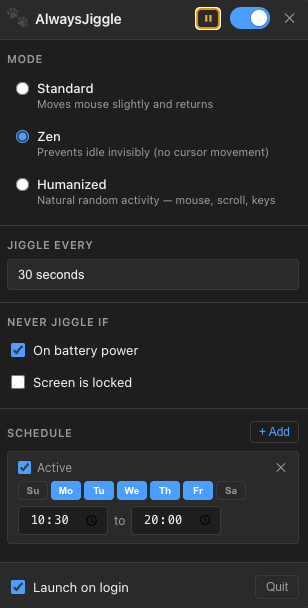
Everything you need to stay awake
AlwaysJiggle is a complete mouse jiggler for Mac with smart features that terminal tools like caffeinate can't match.
Launch on Login
AlwaysJiggle starts automatically when you log in to macOS. Set it once and forget it.
Adjustable Interval
Control how often activity is simulated — from every few seconds to every few minutes.
Menu Bar Native
Lives quietly in your macOS menu bar. The icon shows active, paused, and zen states at a glance.
Standard Mode
Nudges the mouse cursor 2px and back every N seconds. Requires Accessibility permission.
Zen Mode
Keeps the display awake and resets the idle timer with no cursor movement. Requires Accessibility permission.
Humanized Mode
Irregular timing with randomized bursts, breaks, and idle phases to mimic real human activity — keeps Slack green.
Work Schedule
Set active days and time windows (e.g. Mon–Fri, 9am–5pm). Stops automatically outside your schedule.
Smart Pausing
Auto-pauses on battery, when the screen is locked, or for a timed duration: 15 min, 1 hour, or until tomorrow.
How AlwaysJiggle works
AlwaysJiggle uses native macOS APIs to simulate periodic user activity, preventing the system from going idle. It runs silently in your menu bar — always one click away.
In Standard mode, it nudges the mouse cursor 2px and immediately returns it — invisible to you but detected by macOS as user activity.
In Zen mode, it prevents macOS from marking the session as idle and keeps the display awake with no visible cursor movement at all.
Humanized mode adds irregular timing with randomized bursts, breaks, and idle phases — the most realistic simulation for keeping Slack and Teams status active.
All three modes require Accessibility permission. macOS only counts real input events toward the idle timer that Slack and Teams read — simply moving the cursor does not keep a status active. You grant the permission once in System Settings on first launch.
Who uses a mouse jiggler for Mac?
From remote workers to developers — anyone who needs their Mac to stay awake without touching the screen.
Prevent Mac from sleeping
Keep your Mac awake during long downloads, renders, or builds without changing Energy Saver settings.
Keep Slack & Teams status green
Remote workers rely on presence indicators. Humanized mode keeps Slack and Microsoft Teams showing you as active.
Keep remote desktop sessions alive
Prevent idle timeouts when monitoring a remote desktop session or waiting for a long-running process.
Prevent screen lock
Standard and Humanized modes prevent macOS from triggering the screen saver or lock screen during long tasks.
Mac caffeine alternative
The macOS caffeinate command requires Terminal. AlwaysJiggle gives you the same power with scheduling, modes, and a menu bar UI.
Menu bar app instead of terminal commands
No commands to remember, no Terminal tab to keep open. AlwaysJiggle lives quietly in your menu bar, always one click away.
Frequently Asked Questions
Everything about AlwaysJiggle, the free mouse jiggler for Mac.
- What is a mouse jiggler?
- A mouse jiggler is a tool that simulates mouse movement or user activity to prevent a computer from going idle, locking the screen, or triggering a screensaver. AlwaysJiggle is a free, open source mouse jiggler built specifically for macOS.
- Is there a mouse jiggler for macOS?
- Yes — AlwaysJiggle is a native macOS menu bar app that acts as a mouse jiggler. It offers three modes: Standard (cursor movement), Zen (invisible idle prevention), and Humanized (random human-like activity). It's free and open source.
- What is the best free macOS jiggler?
- AlwaysJiggle is a free, open source macOS jiggler that runs natively in the menu bar. Unlike the caffeinate terminal command, it gives you three jiggle modes, a work schedule, battery awareness, and pause controls without opening Terminal. It supports macOS 13 Ventura and later on Apple Silicon, and there is no subscription or paid tier.
- How do I keep my Mac awake without touching the mouse?
- Use AlwaysJiggle in Zen mode. Zen mode keeps your display awake and prevents macOS from marking the session as idle without moving the cursor at all. Like every AlwaysJiggle mode, it needs Accessibility permission, which you grant once on first launch.
- Is AlwaysJiggle safe to use?
- Yes. AlwaysJiggle only uses standard macOS Accessibility APIs, which every mode requires — you grant the permission once in System Settings on first launch. There is no network access and no data collection. The full source code is public on GitHub for complete transparency.
- Does AlwaysJiggle move the mouse automatically?
- In Standard mode, yes — it nudges the cursor 2px and immediately returns it. In Zen mode, there is no cursor movement at all. In Humanized mode, movement is randomized and irregular to mimic real human behavior.
- Can I schedule when the mouse jiggler runs?
- Yes. AlwaysJiggle has a built-in work schedule feature. You can set specific active days (e.g. Mon–Fri) and time windows (e.g. 9am–5pm). It automatically stops outside your schedule.
- I get 'AlwaysJiggle is damaged and can't be opened' — how do I fix it?
- This is a macOS Gatekeeper warning because AlwaysJiggle is not notarized with an Apple Developer certificate. It is safe — the code is public on GitHub. To fix it, move AlwaysJiggle to your Applications folder, then run this command in Terminal: xattr -cr /Applications/AlwaysJiggle.app — then open the app normally.
- What macOS versions and Macs does AlwaysJiggle support?
- AlwaysJiggle supports macOS 13 Ventura and later (including Sonoma and Sequoia), and runs on Apple Silicon Macs (M1, M2, M3, M4). Download the arm64 .dmg from the GitHub releases page.
Built by Cesar
Hi, I'm Cesar — a fullstack developer who built AlwaysJiggle because I was tired of my screen locking during long remote sessions. I wanted a clean, native macOS utility with the features that terminal commands can't provide.
Visit cesar.dev.brDownload AlwaysJiggle
Free for macOS
Keep your Mac awake, your Slack green, and your screen from locking — all from the menu bar. No trial, no subscription, no nonsense.
Download .dmg — It's FreemacOS 13 Ventura or later • Apple Silicon (arm64)
Getting a “damaged and can’t be opened” warning?
macOS Gatekeeper blocks unnotarized apps. AlwaysJiggle is safe — the code is public. After moving it to Applications, run this once in Terminal:
xattr -cr /Applications/AlwaysJiggle.appThen open the app normally.